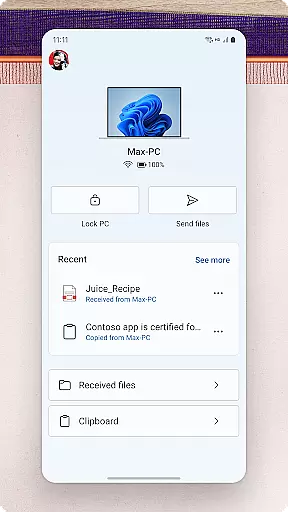
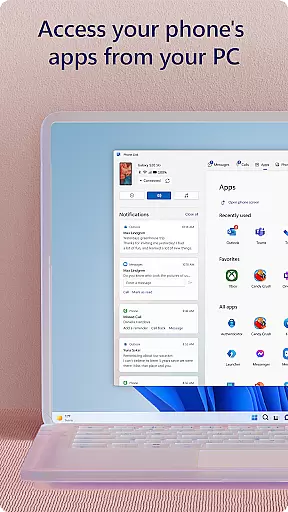
Link to Windows is a productivity-focused application that bridges the gap between your Android phone and Windows PC. This app allows users to seamlessly interact with their mobile device directly from their computer, streamlining workflows and enhancing connectivity. Key functionalities include making and receiving calls, managing notifications, and accessing mobile apps on the PC.
The app also supports advanced features like drag-and-drop file sharing, cross-device copy-paste, and instant photo access, which are particularly beneficial for users with compatible Microsoft Duo, Samsung, or HONOR devices. These capabilities make multitasking more efficient and eliminate the need for constant device switching, thus optimizing the user's productivity.
For professionals and students alike, Link to Windows offers an integrated ecosystem where they can handle emails, texts, and calls without reaching for their phone. The app leverages the larger screen, keyboard, and mouse of the PC to provide a more comfortable interface for interacting with mobile content, significantly improving the user experience in both personal and professional settings.
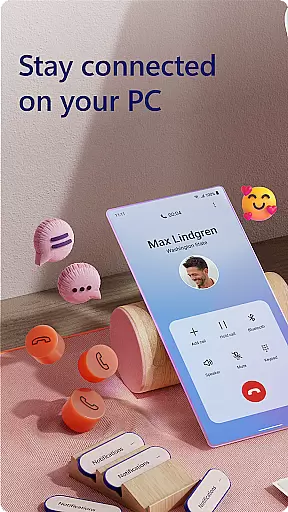
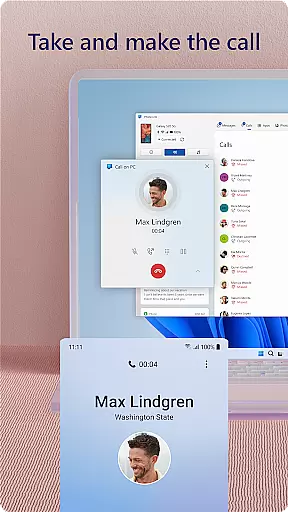
Link to Windows boasts a variety of features designed to enhance user productivity by integrating mobile functionalities with PC interfaces. One of its standout features is the ability to make and receive calls directly from the PC, provided the PC has Bluetooth capability. This feature alone transforms how users manage communications, allowing them to stay focused on their tasks without needing to pick up their phone.
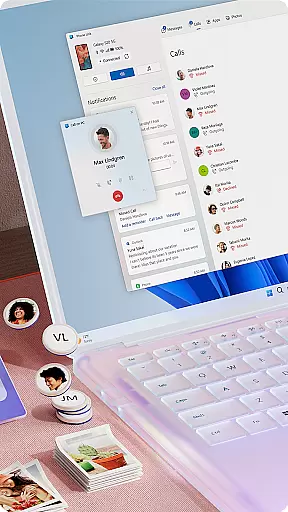
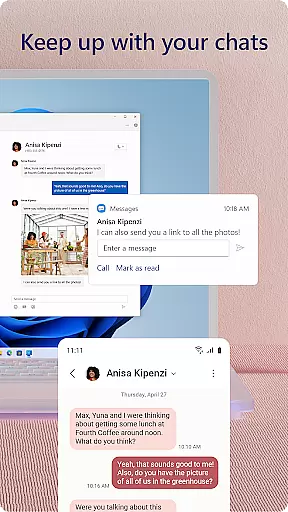
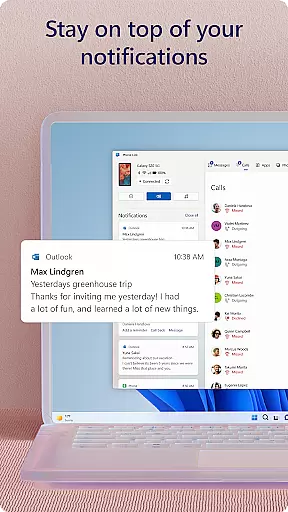
In addition to call management, the app provides robust notification controls, enabling users to manage alerts from their Android phone right on their PC. Users can also access their favorite mobile apps, read and reply to text messages, and perform drag-and-drop file operations between devices. These features collectively ensure that users have a fluid and uninterrupted workflow, maintaining productivity throughout their day.
Exclusive functionalities such as cross-device copy-paste, Phone screen mirroring, and app multitasking further distinguish Link to Windows. These are especially valuable for users with compatible devices, offering an enriched experience that maximizes the strengths of both the PC and smartphone. Overall, these features create a cohesive digital environment that adapts to various user needs and preferences.
Task management is a cornerstone of productivity, and Link to Windows excels in this area by integrating your Android phone's functionalities with your Windows PC. This seamless connection allows users to handle calls, text messages, notifications, and even mobile apps directly from their PC.
The app enables multitasking that was previously cumbersome or impossible, such as making and receiving calls or replying to texts without ever touching your phone. This functionality not only streamlines communication but also enhances productivity by allowing users to focus on their primary workspaceu2014their PCu2014without constant interruptions from their mobile device.
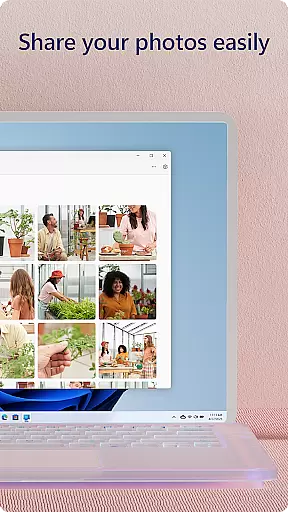
Moreover, the ability to drag and drop files between devices and copy-paste content across them simplifies data management tasks. Users can instantly access photos on their phone from their PC, edit documents, and share information effortlessly. These features collectively ensure that managing tasks across devices becomes intuitive and efficient, significantly boosting overall productivity.
Cross-device synchronization is vital for maintaining workflow continuity, and Link to Windows offers reliable and real-time updates between your Android phone and Windows PC. By linking your devices, you create a cohesive ecosystem where data flows seamlessly, ensuring you never miss a beat.
This synchronization extends to various functionalities, including notifications, messaging, and even app usage. For instance, users can interact with their phoneu2019s apps directly from their PC, leveraging the larger screen, keyboard, and mouse for a more comfortable experience. The Phone Link feature ensures that any action taken on one device is accurately reflected on the other, providing a unified user experience.
Compatibility with select Microsoft Duo, Samsung, and HONOR phones further enhances this reliability. Exclusive features like cross-device copy and paste, file drag-and-drop, and app mirroring are optimized for these devices, offering an even smoother integration. With these capabilities, Link to Windows ensures that users enjoy a dependable and synchronized environment, enhancing both convenience and efficiency.
Seamless device integration
Efficient multitasking capabilities
Enhanced productivity tools
User-friendly interface design
Robust security and privacy measures
Limited to specific devices
Requires Windows 10 or later
Some features need Android 11.0
Bluetooth dependency for calls
Potential learning curve for new users

When you Focus, so will your Bean in this cozy focus timer
 4.30
4.30
Ads Free App! Editor, Hide File, Copy, Move, Delete and Rename.. all facility av
1.70
Mega cloud explorer plugin for Solid Explorer
3.80
Android Wallet Password Manager
4.80
Secure, fast, open-source, Remote Desktop Client for Windows and Linux with SSH
4.60
CalenGoo is a very flexible and feature-rich calendar app
4.40
Translate text/voice/photos in 150+ languages. Offline & fast translator app.
4.50
Subscribe to Webcal & .ics calendars and keep them up-to-date!
4.50
This small app MUST BE INSTALLED after purchase, else license won't work
4.40
Native client for Forgejo and Gitea
5.00
8 custom complications. Custom Time Fonts. Beautiful color schemes. A++ Design.
5.00
Use powerful, industry-leading AI tools to generate visual charts from any data
4.80
Direct Chat without saving contacts & Dual WA Account on Single Device
4.70
App Lock with fingerprint, password: Lock apps & hide photos with lock screens
4.60
Intelligent AI Assistant
4.10
* block pre-roll ads, pop-up and forced redirect ads * Samsung certification app
4.00
⏰ Finally a timer app which can run multiple timers simultaneously on your watch
3.90
Code on-the-go with VScode for Android. Edit,debug and collaborate from mobile!!
3.10
IP Camera Viewer - Android TV : RTSP Surveillance camera viewer for Android TV
4.3


User Reviews